Managed Services
Windows Server 2016 End of Support: What to Do Before 12 January 2027
Windows Server 2016 support ends on 12 January 2027. Learn the risks, the upgrade, hardware refresh and VPS options, and a 5-step pre-migration checklist.
- Author
- Synchron
- Category
- Managed Services
- Published on
- Updated on
6 min read
It is Monday morning and the accounting team connects to the ERP system as usual. Everything looks fine; the server has run without problems for years. But this server runs on Windows Server 2016, and the Windows Server 2016 end-of-support date, 12 January 2027, is approaching fast.
For many companies, this date looks like an ordinary day in the calendar. Yet when support ends, the server keeps running but is no longer protected. In this article, we explain step by step what end of support means, what the risks are and which migration paths you can take.
What Does Windows Server 2016 End of Support Mean?
Microsoft ended mainstream support for Windows Server 2016 in January 2022. Since then the product has been in its extended support period, which ends on 12 January 2027 (Source: Microsoft Lifecycle).
During extended support, no new features were added, but security updates continued to be released. This is why many companies could keep using this version without problems. With end of support, this last layer of security disappears too.
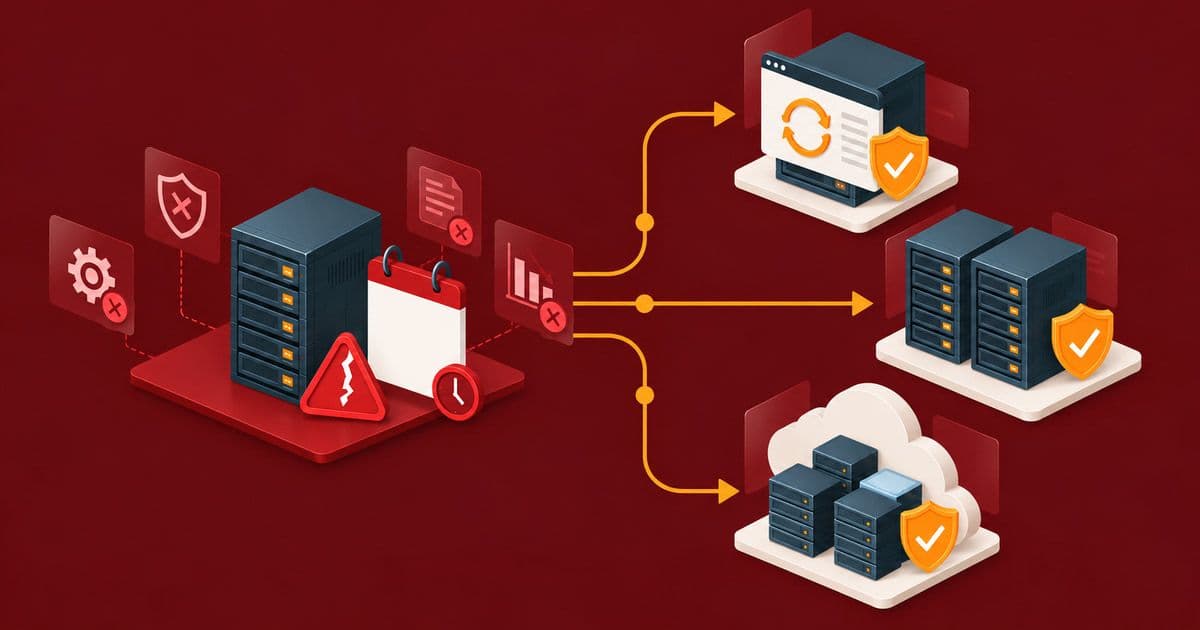
After this date, no security updates or technical support will be provided under standard support. A newly discovered vulnerability will stay open on your server. In short, the server will keep running, but its door will be left open a little wider every month.
3 Risks an Unsupported Server Poses to Your Company
1. Unpatched security vulnerabilities
Attackers specifically target unsupported systems, because they know that every newly published vulnerability will stay open on them. A server that receives no updates can also become an entry point to the other systems on your network.
2. Application and hardware compatibility
Software vendors eventually stop supporting older operating systems. The new version of your ERP, accounting or backup software may not run on Windows Server 2016. This creates a vicious circle in which you cannot update your business applications either.
3. Audit and compliance issues
In information security audits, the use of unsupported software is treated as a serious finding. Under KVKK (the Turkish Personal Data Protection Law), it is also harder to show that the required technical measures are in place for systems that process personal data when the infrastructure is out of date.
3 Ways to Move Off Windows Server 2016
1. Upgrade: Windows Server 2025 on your existing hardware
If your hardware is recent enough and has sufficient capacity, upgrading to Windows Server 2025 is the fastest option. Windows Server 2025 supports an in-place upgrade from the 2016 version. Even so, this step should not be taken without hardware compatibility checks and application testing.
2. Refresh: New hardware with Dell PowerEdge
If your server was purchased together with the 2016 licence, its hardware is most likely near the end of its warranty as well. In that case, refreshing the hardware with Dell PowerEdge and doing a clean installation with a current licence can make more sense for both performance and long-term cost.
3. Migrate: Moving the workload to a VPS
If you do not want to invest in hardware, moving the workload to a VPS (virtual private server) infrastructure is a good alternative. You leave the hardware maintenance and refresh cycle behind and plan resources according to your needs.
Which Path Is Right for You?
There is no single right answer to this question. The decision depends on the age of your server, the applications running on it, your virtualisation needs and the growth you plan for the next few years.
For example, for a small office running file sharing and an accounting application on a single physical server, an upgrade or a move to a VPS may be enough. In an environment with several virtual machines and a heavy database load, a hardware refresh and the choice of the right licence edition come to the fore.
For some companies, the most efficient solution is to combine these paths. Critical workloads can move to new hardware while less critical services move to the VPS infrastructure. What matters is that the decision is based on a real analysis of the existing infrastructure.
5-Step Pre-Migration Checklist
1. Build an inventory
List which servers run Windows Server 2016 and which roles (Active Directory, file, application, database) these servers perform.
2. Check dependencies and compatibility
Confirm with each application vendor that the application is compatible with the target operating system. Older application versions are the main source of surprises during migration. If needed, include the application update in the migration plan.
3. Plan your licensing
Windows Server 2025 is licensed per core, and a CAL (client access licence) is required for every user or device that accesses the server. Choosing the Standard or Datacenter edition according to your virtualisation density directly affects cost.
4. Prepare a backup and rollback plan
Take a verified, restorable backup before migration. Decide in advance how you will return to the old system if a problem occurs.
5. Start with a pilot and finalise the schedule
Start with a non-critical server, test the process, and then migrate critical systems in a planned way outside business hours.
Why Should You Start Now?
When inventory, compatibility testing, licence and hardware procurement, data migration and user testing come together, the process takes several weeks. With the New Year holidays taken into account, November is the last comfortable period to start planning.
Migrations left to the last weeks lead to rushed decisions and unplanned downtime. Companies that start early complete the migration on their own schedule, without surprises.
In addition, clarifying migration costs before the new year's budget is final lets you place the hardware and licence investment in the right period. An inventory analysis done in November prevents a possible crisis in January.
Conclusion
Windows Server 2016 end of support is a necessity to review your infrastructure, but it is also an opportunity. With a well-planned migration, you can move to an infrastructure that is more secure, performs better and will be supported for years.
At Synchron, we manage your Windows Server migration end to end, from inventory analysis and licensing to hardware refresh and migration to a VPS. Contact us to assess the state of your servers together.
About the author
Synchron